
What to Do When Antivirus Flags a Game File
An antivirus warning means the file matched a security rule, behavior pattern, reputation signal, or known threat signature. Some legitimate tools can be classified incorrectly, but a detection should never be dismissed solely because a file is expected to modify a game. Use the steps below to evaluate the alert before opening the file or changing protection settings.
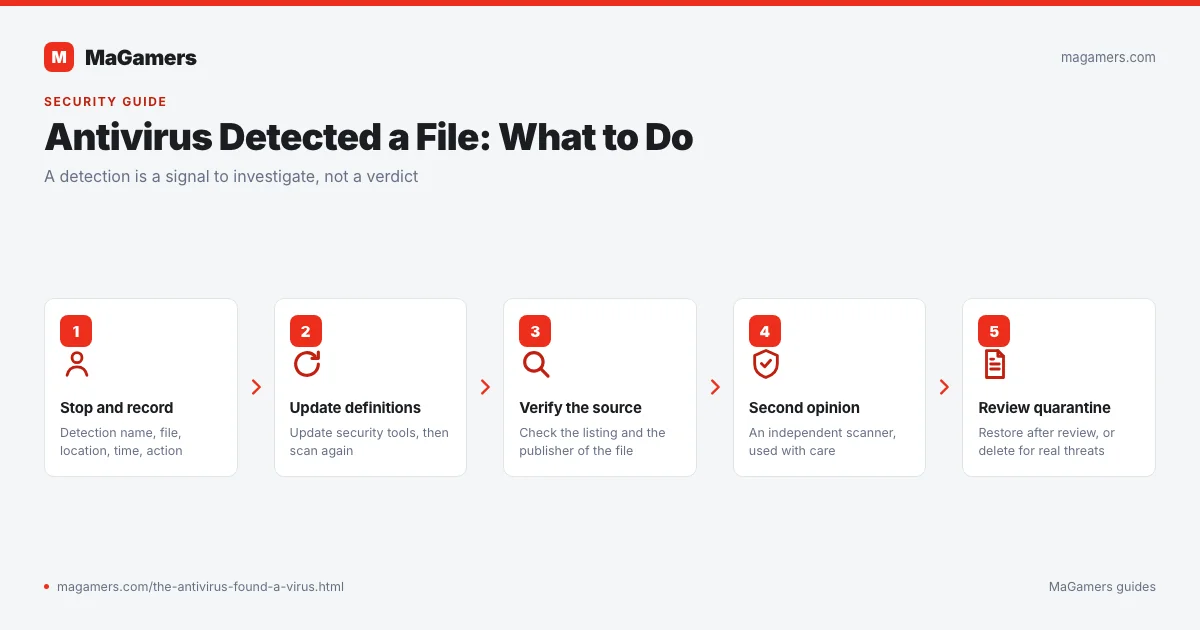
Step 1: Stop and Record the Detection
Do not run the file again. Note the exact detection name, affected filename, original location, time, and action taken by the security software. Generic labels such as “suspicious” and specific malware-family names carry different levels of information.
Step 2: Update Security Definitions
Open Windows Security or your installed antivirus and check for security intelligence updates. Scan the file again after definitions are current. Vendors sometimes correct false classifications through updates.
Step 3: Verify the File and Its Source
- Confirm that the filename, size, and version match the page you used.
- Check a digital signature when the publisher normally signs the file.
- Compare a cryptographic hash if the publisher or listing provides one.
- Be cautious if the package contains unrelated installers, browser extensions, or scripts.
- Do not trust a file only because comments say it is safe.
Step 4: Use a Second Opinion Carefully
You can scan the file with another reputable security product or a multi-engine analysis service. Consider privacy before uploading: do not submit personal documents, paid software, confidential builds, or files containing account data.
Step 5: Review Quarantine
In Windows Security, open Virus & threat protection → Protection history. Read the severity and details. Leaving the file quarantined is safer than restoring it before verification.
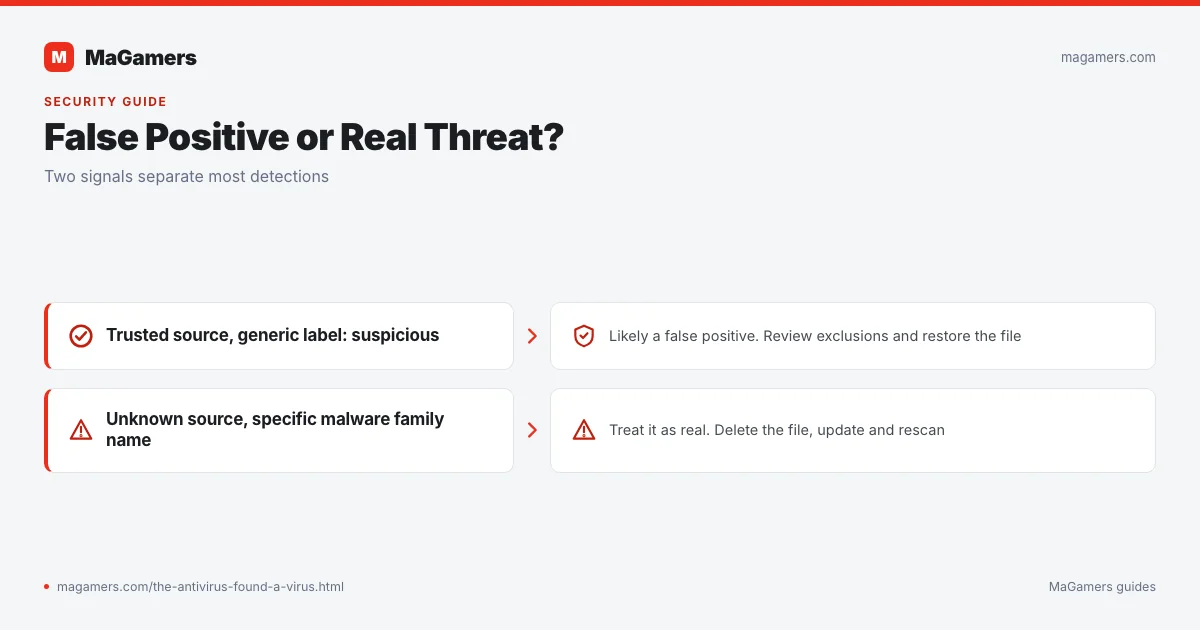
If You Believe It Is a False Positive
Submit the file or detection details to the antivirus vendor for review. Microsoft provides an official file submission portal for files believed to be malware or incorrectly classified. Wait for a result when the risk is unclear.
About Exclusions
An exclusion prevents security software from checking a selected file or folder. Use one only when you have strong evidence that the file is legitimate and you understand the risk. Prefer the narrowest possible temporary exclusion, never exclude an entire Downloads folder or game library, and remove the exclusion after the specific task is complete.
Delete the File When
- The detection identifies credential theft, ransomware, a backdoor, or another high-risk family.
- The file source or version cannot be verified.
- The package contains unexpected software or asks you to disable multiple protections.
- Several reputable engines agree on the detection.
- You are unsure and do not need the file.
Related MaGamers Guides
- PC game download checklist — verify versions and file types before opening them
- Archive extraction guide — handle a warning triggered during extraction
- Game update guide — check whether an update modified or replaced files
- Community Rules — report suspicious links or misleading advice