How to Disable a VPN for Downloads
Are your game downloads slower than expected or failing to start? An active VPN can sometimes be part of the problem. VPN traffic is encrypted and routed through another server, which may increase latency, reduce available bandwidth, or trigger restrictions on a download host. This guide explains how to test whether your VPN is affecting the connection, how to disconnect it temporarily on Windows and macOS, and what to try before turning it off completely.
Why a VPN Can Affect Download Speed
- Extra routing: your traffic travels through the VPN server before reaching the download host.
- Server distance: a server in another country usually adds latency and may reduce throughput.
- Server congestion: a busy VPN location can become a bottleneck during peak hours.
- Protocol overhead: some VPN protocols use more processing and network overhead than others.
- Shared VPN addresses: download hosts may rate-limit or block IP addresses used by many people.
- Kill-switch behavior: some VPN apps block all internet traffic after disconnection until the kill switch is changed.
Try These Options Before Disconnecting
- Connect to a VPN server in your country or the nearest available region.
- Switch to a modern protocol such as WireGuard, NordLynx, or Lightway, if your provider supports it.
- Pause other downloads, cloud backups, game updates, and video streams.
- Try a different VPN server because the current one may be overloaded.
- Use split tunneling to exclude only the browser or download application from the VPN.
- Restart the VPN application and your router if the connection has been active for a long time.
Before You Turn Off the VPN
- Disconnect instead of removing: you normally do not need to delete the VPN profile.
- Check the kill switch: change it only if the internet remains blocked after disconnection. This temporarily reduces VPN protection.
- Save your progress: pause the active download first if the download host does not support resuming.
- Use trusted networks: avoid disabling a VPN while connected to unknown public Wi-Fi.
- Reconnect afterward: restore the VPN when the test or download is complete.
How to Turn Off a VPN on Windows
Built-in VPN in Windows 11 or Windows 10
- Open Settings.
- Go to Network & internet → VPN.
- Select the active VPN connection.
- Choose Disconnect. Do not select Remove unless you want to delete the saved configuration.
NordVPN
- Open NordVPN and select Disconnect.
- If internet access remains blocked, open NordVPN settings and review Kill Switch.
- Reconnect after the download test is complete.
ExpressVPN
- Open ExpressVPN and press the large connection button to disconnect.
- If the connection remains blocked, review Network Lock in the application settings.
Proton VPN, Surfshark, TunnelBear, or Windscribe
Open the VPN application and select Disconnect or turn off the main connection switch. If Windows has no internet afterward, check the application settings for a kill switch, permanent kill switch, or firewall mode.
OpenVPN or Cisco Secure Client
- Find the VPN icon in the Windows system tray.
- Right-click the active connection and choose Disconnect.
- Use Exit only if the application continues running and reconnecting automatically.
Browser VPN Extensions
- Open the extensions menu in Chrome, Edge, Firefox, or your current browser.
- Select the VPN extension and choose Disconnect.
- If necessary, disable the extension temporarily from the browser extension settings.
How to Turn Off a VPN on macOS
Built-in VPN Configuration
- Open System Settings → VPN. On older macOS versions, open System Preferences → Network.
- Select the connected VPN service.
- Turn the connection off or choose Disconnect.
- Do not delete the configuration unless you no longer need it.
NordVPN, ExpressVPN, Proton VPN, or Similar Apps
- Open the VPN application from the menu bar or Applications folder.
- Select Disconnect.
- If internet access remains blocked, review the kill-switch setting.
- If the VPN reconnects automatically, turn off Start at login or Auto-connect temporarily.
Tunnelblick
Select the Tunnelblick icon in the menu bar, choose the active profile, and click Disconnect. Quit Tunnelblick only if it reconnects automatically.
Cisco Secure Client
Open Cisco Secure Client from the menu bar, select the active VPN connection, and choose Disconnect.
Compare Your Download Speed Correctly
- Pause other downloads and streaming applications.
- While connected to the VPN, test at Fast.com or Speedtest.net.
- Write down the download speed and latency.
- Disconnect the VPN, wait 15–30 seconds, and run the same test again using the same test server when possible.
- Repeat each test two or three times. A single result can be affected by temporary network congestion.
Important: A higher speed-test result does not guarantee that one specific file host will be faster. The download host may have its own bandwidth limits, regional routing, or temporary load.
If the Internet Stops After Disconnecting
- Open the VPN application and disable its kill switch or network lock temporarily.
- Close the VPN application completely.
- Turn Wi-Fi off and back on, or disconnect and reconnect the Ethernet cable.
- Restart the browser.
- If necessary, restart the computer and router.
- Reconnect the VPN after testing and restore your preferred security settings.
Using Download Buttons on MaGamers
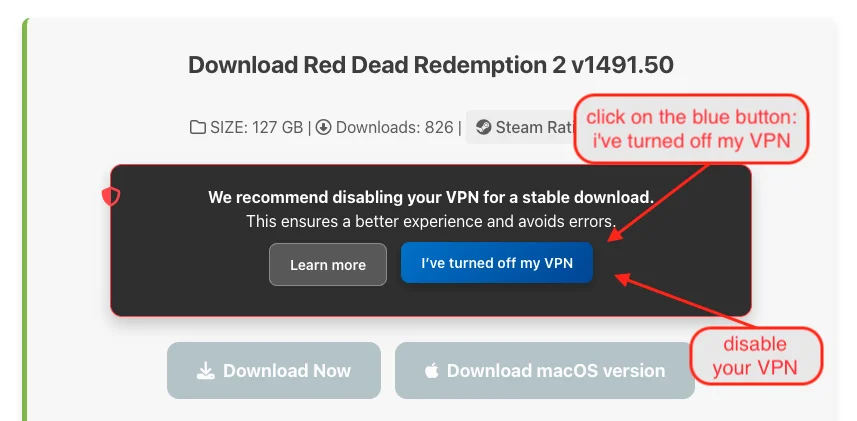
If a MaGamers download page asks you to disconnect the VPN, temporarily disconnect it, refresh the game page, and confirm that the download controls become available.
- Disconnect the VPN and refresh the game page.
- In the VPN notice, select the blue I’ve turned off my VPN button.
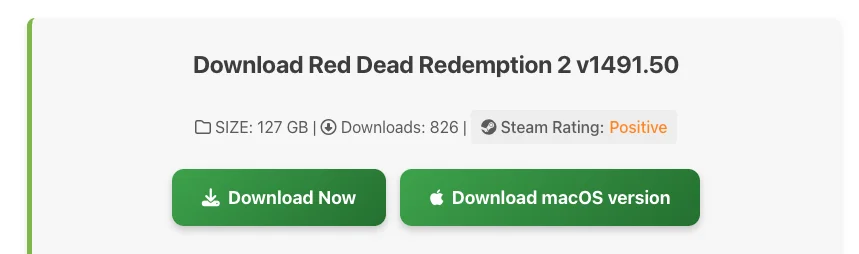
- Wait for the download buttons to become active.
- Start the required download.
- Reconnect your VPN afterward if you normally use it.
Frequently Asked Questions
Will disabling a VPN always make downloads faster?
No. It helps only when VPN routing, server load, protocol overhead, or an IP restriction is causing the slowdown. Your internet connection or the download host may still be the limiting factor.
Is it safe to disconnect a VPN?
It is generally safe on a trusted home network, but your regular public IP address becomes visible to the services you use. Avoid disconnecting on unknown public Wi-Fi unless necessary.
Why does my internet stop when I disconnect?
The most common reason is an active kill switch or network-lock feature. Temporarily disable that option, reconnect the network, and restore it when you reconnect the VPN.
Can I bypass the VPN only for downloads?
Yes, if your provider supports split tunneling. Add the browser or download application to the bypass list while keeping other applications connected to the VPN.
Do browser VPN extensions affect other applications?
Usually they affect only browser traffic. A desktop VPN application normally routes traffic from the whole device unless split tunneling is enabled.
Related MaGamers Guides
- PC game download guide — continue with torrent, archive, and installation steps
- Install Opera for MaGamers downloads — follow the browser activation workflow
- Review an antivirus warning — check a flagged file before opening it
- MaGamers Cookies Policy — review browser storage and analytics information