
How to Mount an ISO File in Windows
An ISO file is a disc image that contains the complete structure of an optical disc. Windows 11, Windows 10, and Windows 8 can mount ISO files directly, making the image appear as a virtual DVD drive. You normally do not need to extract the ISO or install additional software.
Before Mounting the ISO
- Wait until the download is fully complete.
- Make sure the file extension is
.iso. - Read the game page for version-specific instructions.
- Keep enough free space for the installation.
- If the file came inside an archive, extract the archive first.
Mount an ISO in Windows 11 or Windows 10
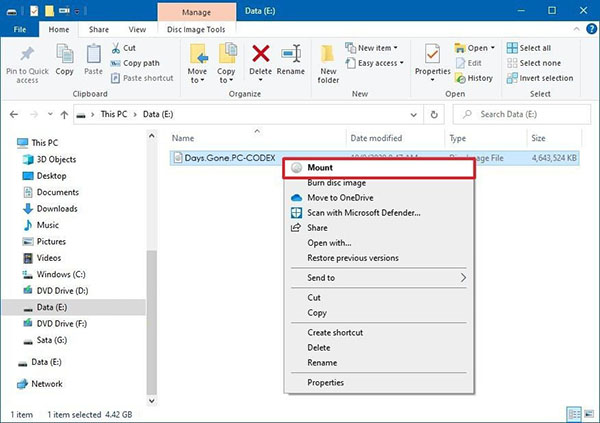
- Open File Explorer and locate the ISO file.
- Right-click the file and choose Mount. On Windows 11, you may need to select Show more options first.
- Open This PC. A new DVD drive will appear.
- Open the virtual drive and read any included instructions before starting setup.
If the Mount Option Is Missing
- Right-click the ISO and select Open with → Windows Explorer.
- If another program owns the ISO association, open Properties, select Change beside “Opens with,” and choose Windows Explorer.
- Move the ISO to a local drive if it is stored on a network location or removable device.
- Check that the file is not still incomplete or locked by another application.
How to Unmount the ISO
After installation, open This PC, right-click the virtual DVD drive, and choose Eject. Ejecting removes the virtual drive but does not delete the ISO file.
Troubleshooting
Windows says the image is corrupted
Verify that the download completed, compare any provided checksum, and download the file again if necessary. Do not continue with an image that fails verification.
Setup does not start automatically
Open the mounted drive manually and locate the documented installer. Do not run unrelated executable files when the package instructions name a specific setup file.
The ISO is inside a RAR or 7Z archive
Use the archive guide to extract all parts into one folder first. Mount the ISO only after extraction finishes successfully.
Microsoft also documents ISO mounting on its official Windows 11 download page.
Related MaGamers Guides
- Download game files with a torrent client — start with the complete download workflow
- Extract ZIP, RAR, and 7Z files — prepare an ISO stored inside an archive
- Review antivirus warnings — check a file before changing security settings