How to Update a PC Game Safely
Game updates can fix bugs, improve performance, add content, or change compatibility. They can also fail when the installed version does not match the patch requirements. This guide explains how to identify the correct update, protect your saves, apply patches in order, and verify the result.
Full Game Replacement vs. Separate Update
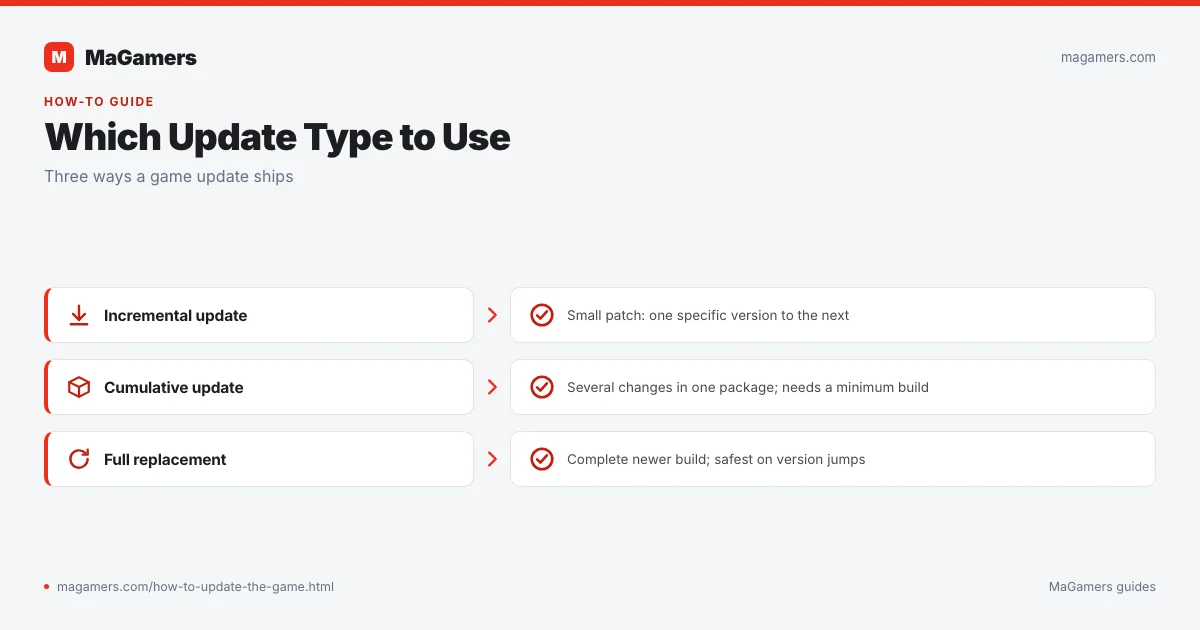
- Full replacement: the complete game is provided as a newer build. You may need to reinstall it.
- Incremental update: a smaller patch upgrades one specific version to the next.
- Cumulative update: one package includes several earlier changes, but it may still require a minimum starting build.
Before Updating
- Open the game or its version file and record the installed build number.
- Read the update page and identify the required starting version.
- Back up save files and any configuration or mod files you want to keep.
- Make sure the game and launcher are closed.
- Temporarily disable mods that may conflict with the new build.
- Confirm there is enough free disk space for temporary update files.
Install an Incremental Update
- Download every required patch from the PC Game Updates archive.
- If the files are compressed, extract them completely.
- Install updates in the exact order shown on the game page.
- When asked for a folder, select the existing game installation directory.
- Do not interrupt file verification or patching.
- Restart the computer if the updater replaces files that were in use.
Install a Full Replacement Build
Read the release notes to determine whether the previous installation must be removed. Back up saves first. If you reinstall, use a clean folder when recommended, then restore only compatible saves and mods after confirming that the unmodified game starts.
Verify the Update
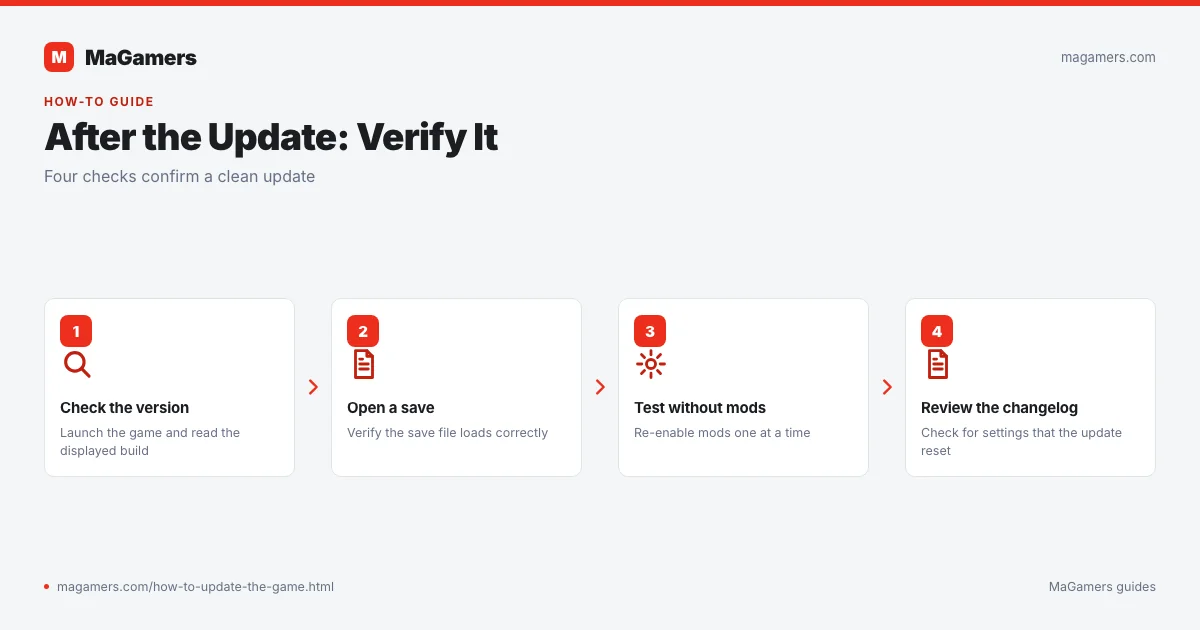
- Launch the game and check the displayed version.
- Open a save and verify that it loads correctly.
- Test without mods before re-enabling them one at a time.
- Review the changelog for settings that may have been reset.
Common Update Errors
“Version not supported” or “wrong version”
The installed build does not match the patch. Find the missing earlier update or use a compatible cumulative package.
Files are missing or checksums do not match
The installation may have been modified, partially updated, or damaged. Restore original files, remove incompatible mods, or reinstall the required base version.
The game no longer starts
Review the update log, restore your backup, test a clean configuration, and confirm that security software did not quarantine a required file.
Related MaGamers Guides
- Extract update archives — prepare ZIP, RAR, or 7Z patch files
- Check quarantined update files — review detections without assuming they are false positives
- PC game download workflow — download a full replacement build when required
- PC Games Library — find the current game listing and version